We're here to help!
If you'd like help in getting the SellSavvy app installed in your Shopify store, simply reach out to us and we'll be glad to assist. Here's the steps to add a SellSavvy user to your store so we can help you get up and running.
- Log into your Shopify store.
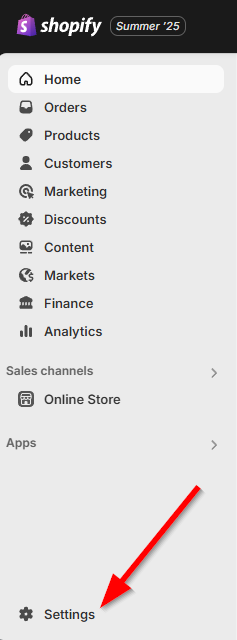
- Click on Settings in the menu.
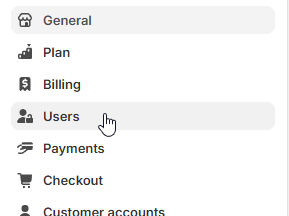
- Select "Users" from the Settings menu.
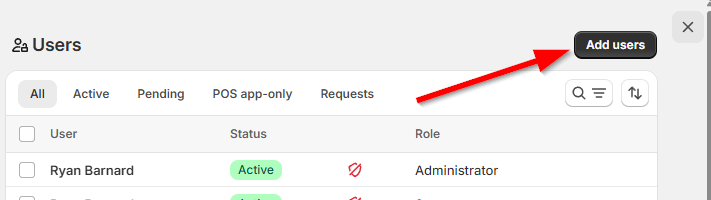
- Click "Add Users" in the top-right corner.
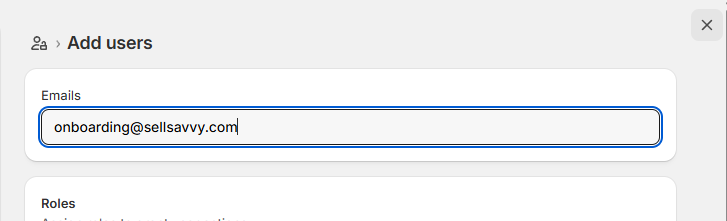
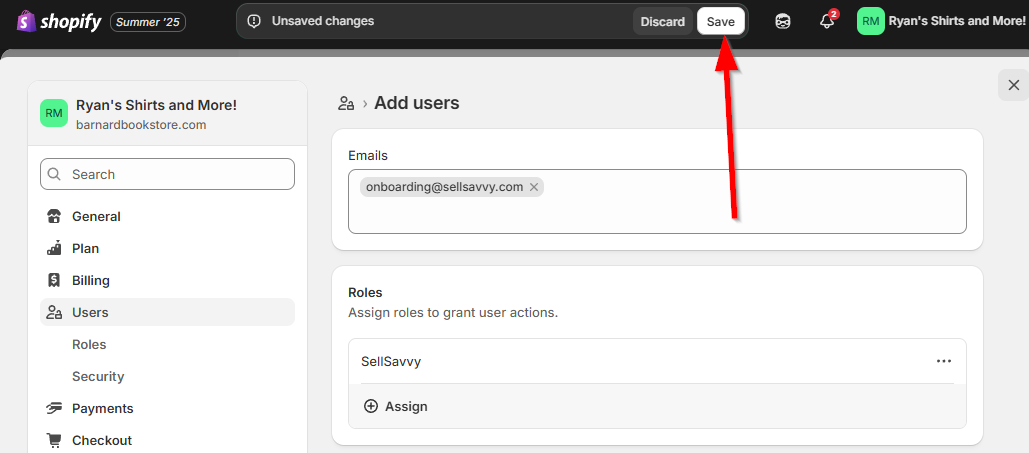
- Now enter the email address that your SellSavvy onboarding specialist asked you to enter in the top section:
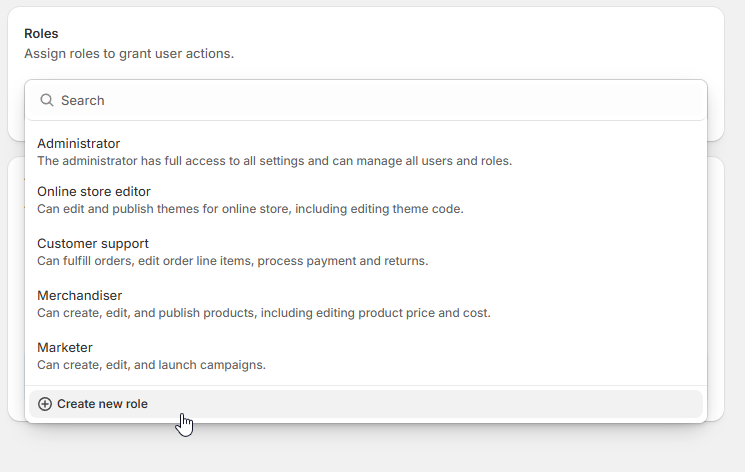
- In the "Roles" section, click Assign, and then choose "Create new role" at the bottom.
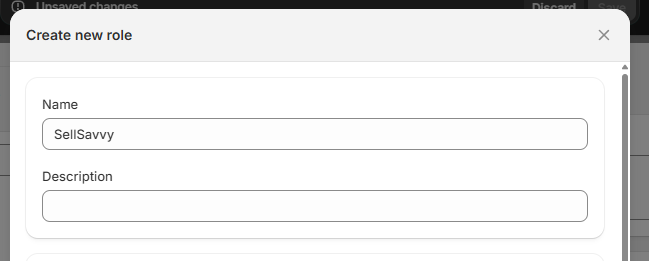
- Name the role "SellSavvy"
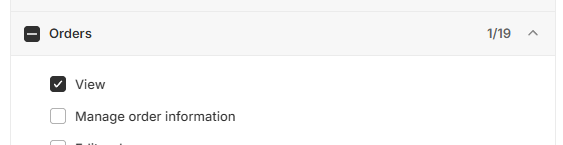
- There are 4 permissions that you'll need to grant SellSavvy. They are:
- Orders: View
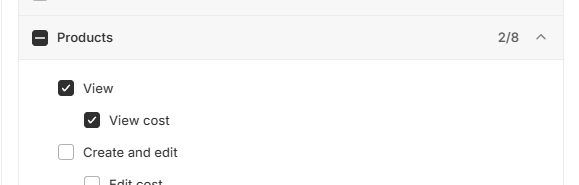
- Products: View & View cost
- Customers: View
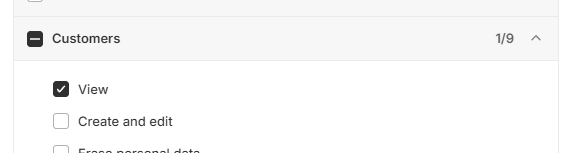
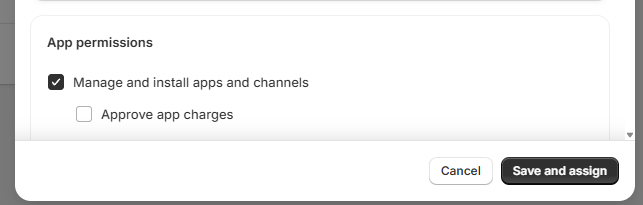
- And "Manage and install apps and channels":
- Orders: View
- Finally, click the Save button at the top of the page.
You're all done! Just let your onboarding specialist know that this has been completed, and they'll be able to assist you with the rest of the Shopify set up.
Was this article helpful?
That’s Great!
Thank you for your feedback
Sorry! We couldn't be helpful
Thank you for your feedback
Feedback sent
We appreciate your effort and will try to fix the article
