SellSavvy uses the CommentSold OpenAPI to communicate with your shop. With this set up, SellSavvy is able to receive data such as order purchases that you can use in your automation flows as a trigger.
Getting this configured is only a couple of steps - however, if you don't have the OpenAPI set up yet, you will need to chat into CS support for assistance. Here's what to do:
Step 1: Get Your OpenAPI Settings from CommentSold
- Log into your CommentSold account.
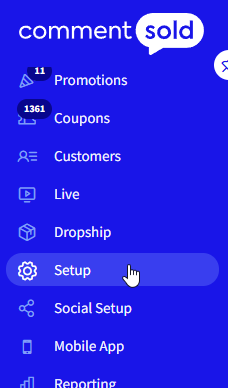
- Click on the "Setup" menu item.
- Look to see if you have "CS OpenAPI" as one of your tabs in Setup. If you have it, click on it.
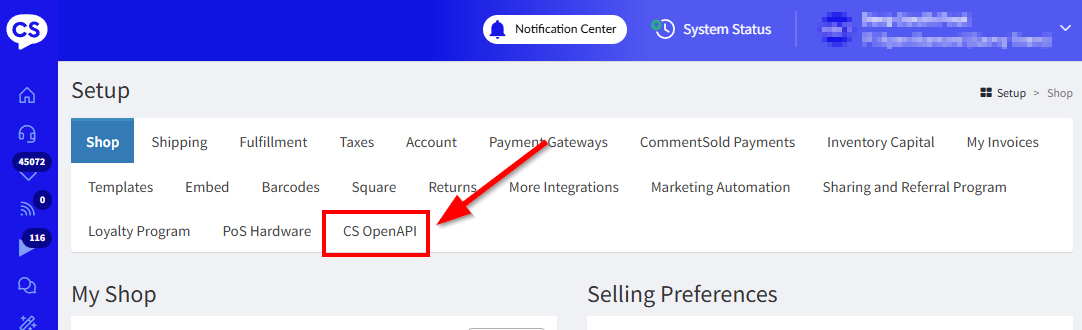
What to do if "CS OpenAPI" is not available for your shop Simply reach out to CS chat support and ask them to enable the "OpenAPI" for your shop and they should put your request in the queue. Once it is completed, the tab will automatically appear for you on your next login. |
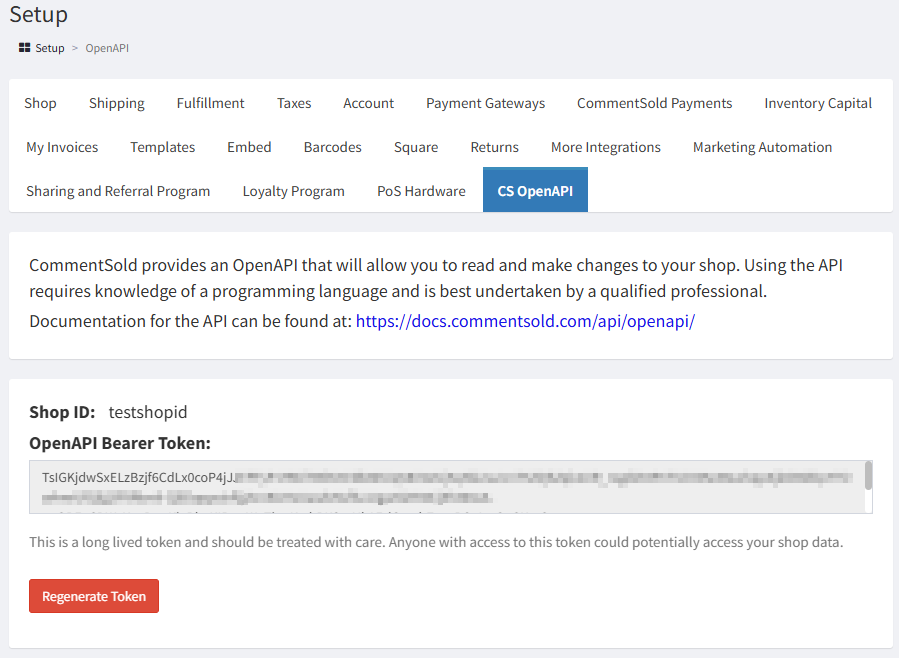
4. Once you have the "CS OpenAPI" tab and have clicked on it, you will see a section that has your "Shop ID" and "OpenAPI Bearer Token". Keep this tab open, as you'll need this information in a moment:
Step 2: Load Your CommentSold OpenAPI Settings in SellSavvy
Next up - we need to copy the Shop ID and OpenAPI Bearer Token into your SellSavvy account by following these steps:
- Log into your SellSavvy account.
- Browse to "Account Settings", and then click on the "Integrations" tab.
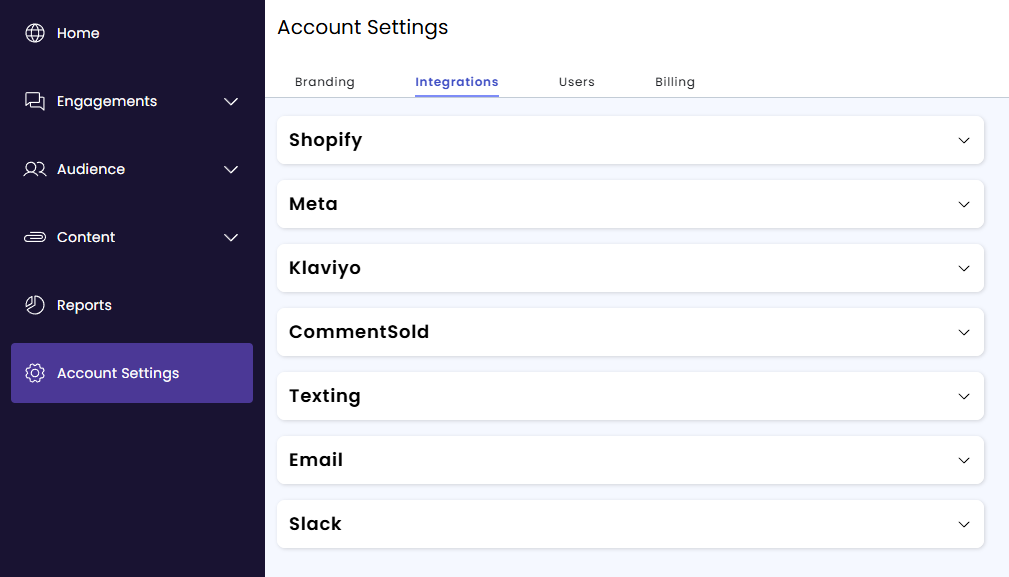
- Expand out the CommentSold section.
- Copy/paste the Shop ID and OpenAPI Bearer Token from your CommentSold tab into the two fields in the SellSavvy tab.
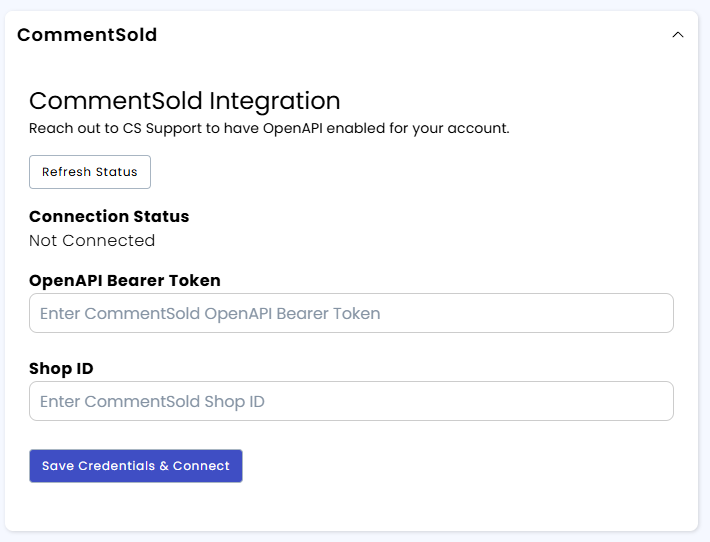
- Click "Save Credentials & Connect"
- If successful, you'll see the "Connection Status" change from "Not Connected" to "Connected", as well as a Data Sync section appear:
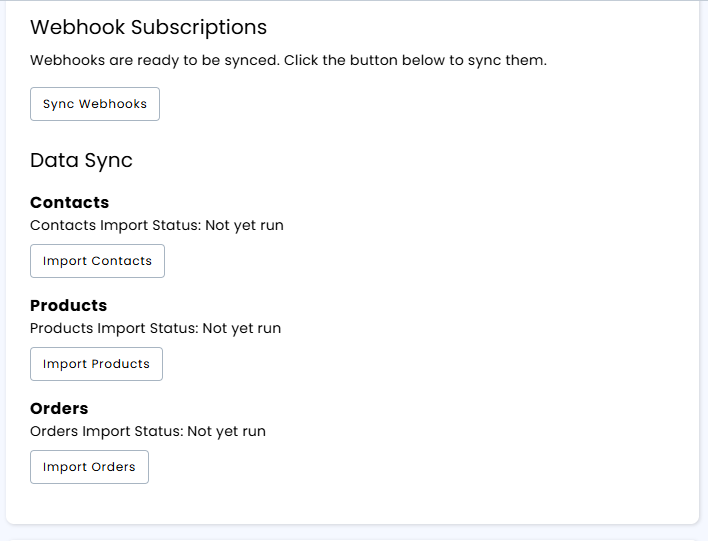
- Now you can start importing your data into SellSavvy from CommentSold. First, press the "Sync Webhooks" button.
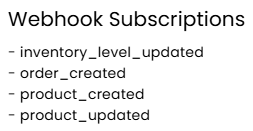
- Once the webhooks are set up, it should look like this:
- Now, press the "Import Contacts" button.
Wait a minute or two, then hit refresh on your browser to check on the status of the import.
You'll know when it's complete when it says something like the below screenshot: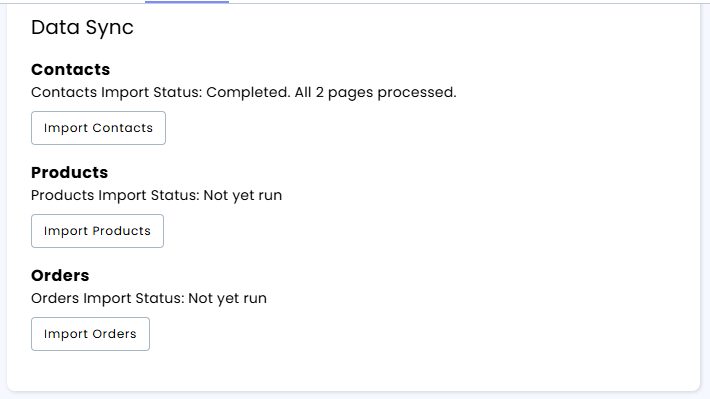
- Now repeat the same process for "Import Products" and "Import Orders".
Note: The "Import Orders" will fetch all orders placed within the past 1 year. This process can take some time. You can continue to use SellSavvy while this is running.
That's it! After completing all the steps in this document, your SellSavvy account will be fully synced to your CommentSold account.
Was this article helpful?
That’s Great!
Thank you for your feedback
Sorry! We couldn't be helpful
Thank you for your feedback
Feedback sent
We appreciate your effort and will try to fix the article